CAMEO UNAVAILABLE NOT DETECTED SOLUTION
CAMEO UNAVAILABLE NOT DETECTED SOLUTION


CHECK ALL THIS FIRST
Could Not Connect (PC)
Connection Issues
If you are experiencing issues connecting your Silhouette machine to your software to a PC computer using a USB cable, please follow the steps in each section below to resolve this concern.
Please follow each section carefully. Skipped sections can result in a delayed resolution.
If a section has been completed fully and there is no connection is established, please continue to the next section.
If you are experiencing issues connection to your software via Bluetooth, please click here.
If you have a Cameo 1, Portrait 1, or older Silhouette model, and you are using a Windows 10 operating system, please click here.
STEP 1: Check Firmware Version
⚠ NOTICE: This step applies ONLY to Cameo 2 or Cameo 3 models. If you have another machine model, please move to the next section.
Please check the firmware version of your Cameo cutting machine as follows:
Plug in and power on the Silhouette Cameo cutting machine Select the Gear icon in the upper right of the LCD screen (on the cutting machine) Select the Firmware optionIf your machine has been loaded with firmware version 1.40/1.60 or above, you do not require a firmware update to proceed to the next step. If your machine is not loaded with the current firmware version, please click here to download and install a firmware update for your Cameo model.
If a firmware update is needed, please perform the update and then proceed to the Software Version section.
STEP 2: Check Software Version
If you are not running the latest version of Silhouette Studio, you will need to update your software now.
After downloading and updating the software, please check the version to confirm proper installation.
Open Silhouette Studio Select the Help menu Select the About Silhouette Studio option Note the numbers (x.x.xxx) listed after Release Check this version number against the "Current Version" listed on the software download pageAfter you have confirmed you are using the latest version of Silhouette Studio, please proceed to the Test Software Connection section.
STEP 3: Test Software Connection
Please do the following to thoroughly test the connection between your Silhouette cutting machine and the Silhouette Studio software:
Close Silhouette Studio Power off the Silhouette cutting machine Disconnect the USB cable from both the Silhouette cutting machine and the computer Disconnect the power cable from the Silhouette cutting machine Open Silhouette Studio Go to the SEND panel Firmly plug in and power on the Silhouette cutting machine Firmly connect the USB cable directly to the machine AND directly to the computer (bypassing any USB hubs)NOTE: All connections should be made using Silhouette cables. Other cables cannot be guaranteed to work properly with Silhouette cutting machines.
If a connection is achieved, the Send screen should show a READY status.
If the status does not shift to READY, please proceed to Clear Printer Queue.
STEP 4: Clear Printer Queue
Sometimes interferring connections can be caused by pending jobs in your printer queue. To clear these:
Press the Windows key and the R key at the same time Type control printers into the Open box Press the Enter key Right-Click on one of your installed printers Click See what's printing If there are jobs in this queue, click each job and select Cancel Print Repeat for each installed printerIf there are no jobs in queue, or if they have all been cleared, and connection cannot be established, please proceed to Test Hardware Connection.
STEP 5: Test Hardware Connection
The previous step Testing Software Connection directed you to properly connect the Silhouette cutting machine to the computer. Please ensure that your Silhouette cutting machine is fully connected and powered on.
SOURCE: https://www.silhouetteamerica.com
FOLLOW THIS VIDEO INSTRUCTION Other Solution Remove all App Data
Other Solution Remove all App Data
The “Silhouette Studio has encountered an error and must quit” error usually arises because you made changes to the Preferences settings that lead to an issue with the settings in the software. In order to fix this issue, you must remove all the app data from the preferences settings. Let’s see how:
Step 1: Right-click on Start and select Run to open the Run command window.
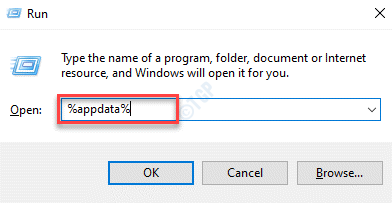
Step 2: In the Run command window, type %appdata% and hit Enter to open the AppData > Roaming folder in the File Explorer.
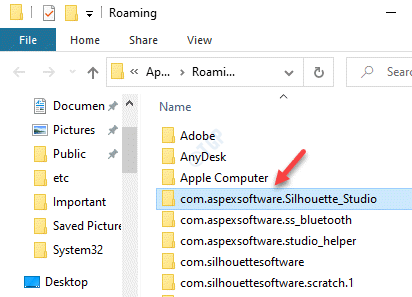
Step 3: Now, locate com.aspexsoftware.Silhouette_Studio folder and hit Delete.
Step 4: Now, go to Recycle Bin and delete all files permanently.
CLEANING OUR CAMEO CUTTER:
Dirty Roller and other parts may reduce the cutting accuracy of your cutter. It may slide your cutting mat or stickers when you use your cutter. Sometime simple cleaning may solve the problem.


Mga Komento
Mag-post ng isang Komento
Thank you for your comments